
Download iGPS – Free Garmin Waypoint Backup & Transfer Tool for Mac
Overview: Why iGPS Is the Go‑to Companion for Garmin Users on macOS
If you own a Garmin GPS device and work on a Mac, managing waypoints, routes, and tracks can feel like a constant tug‑of‑war between two operating systems. iGPS bridges that gap by offering a simple, secure way to download and upload Garmin data directly from your computer. The application supports both one‑way (receive only) and two‑way (send and receive) transfers, giving you full control over which elements you want to move. Whether you’re a seasoned hiker cataloguing dozens of trailheads, a cyclist logging daily routes, or a field researcher needing to archive data for later analysis, iGPS streamlines the process into a few clicks.
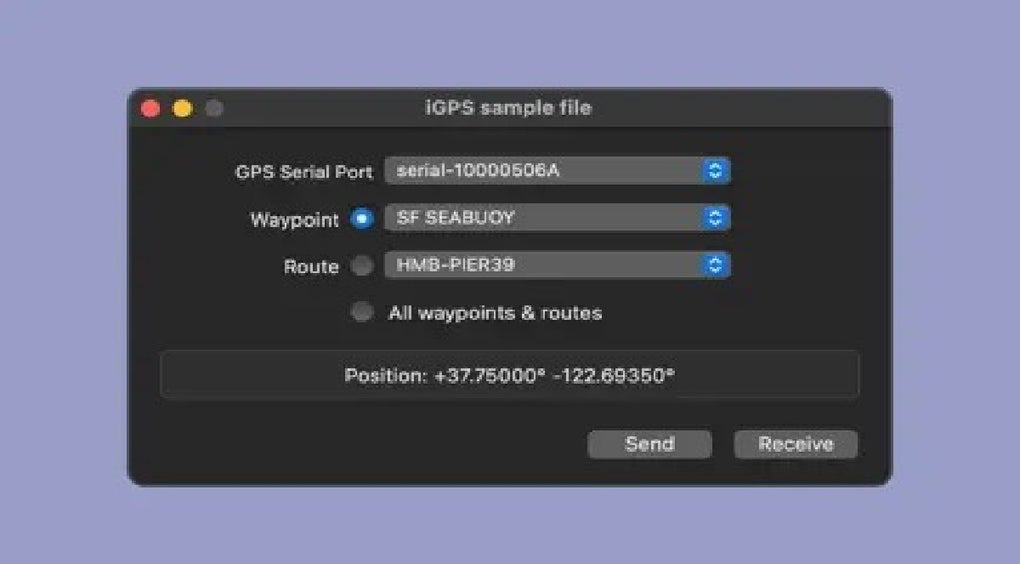
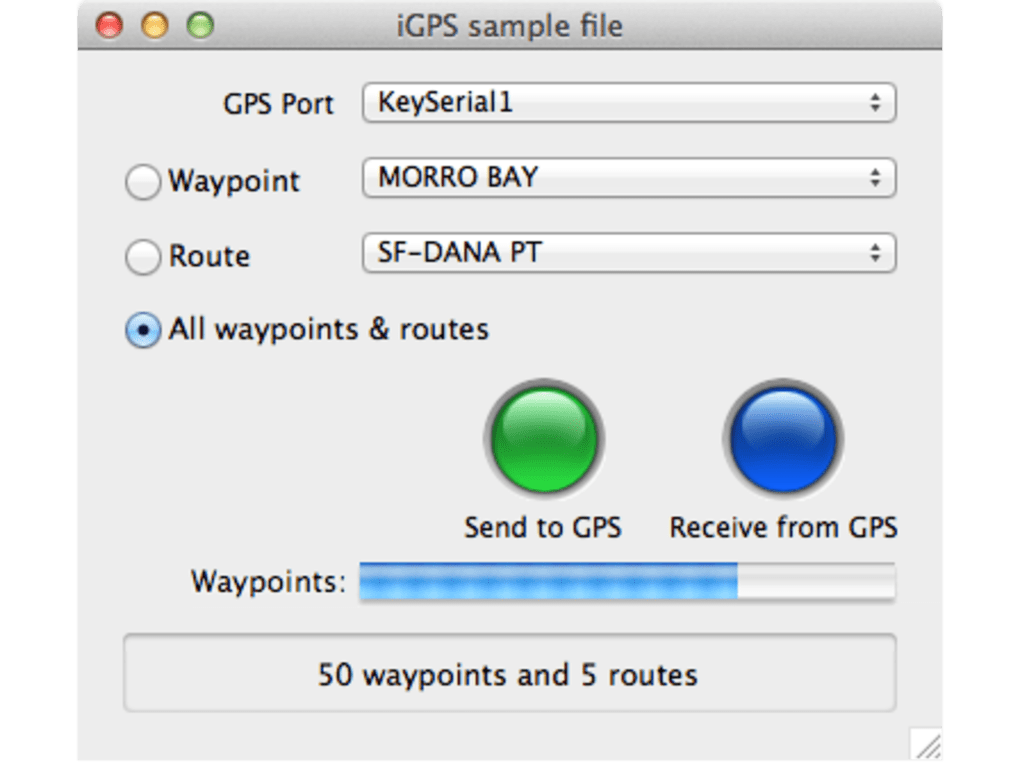
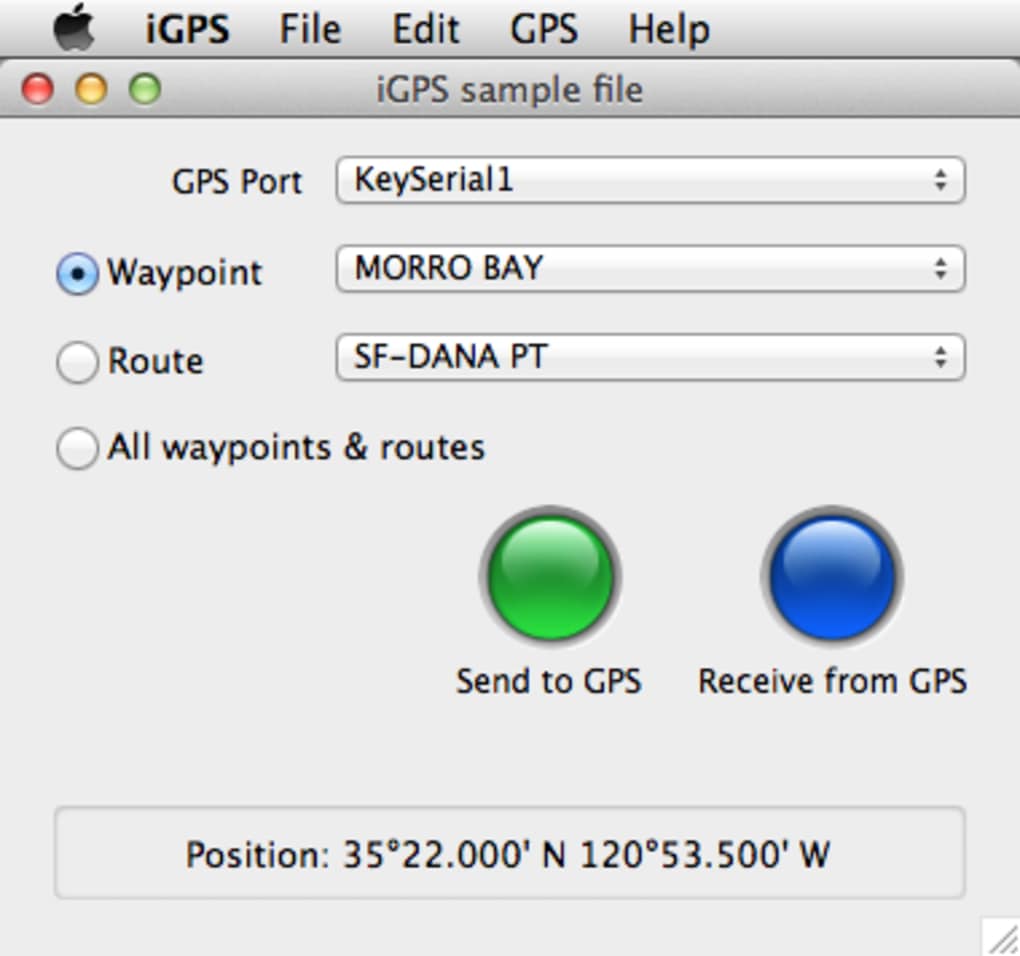
The core of iGPS is its ability to handle the GPX (GPS Exchange) format, a universal standard recognized by virtually every modern GPS device and mapping software. This means you can export waypoints from your Garmin, edit them in your favorite GIS tool, then re‑import the refined set without compatibility headaches. The app also respects the hierarchy of your data: you can select individual waypoints, entire routes, or a combination of both, thanks to intuitive drop‑down menus that list each element by name.
While iGPS is free to try, the trial version limits you to a single Garmin device for saving and sending. This restriction encourages users to upgrade for multi‑device support, but even the trial showcases the program’s stability and ease of use. All you need is a USB‑to‑serial adapter to connect your Garmin to the Mac, after which iGPS takes over the heavy lifting, letting you focus on planning your next adventure rather than fiddling with cables and command‑line tools.
Key Features & Compatibility (itemprop="featureList")
- Bidirectional transfer: send waypoints/routes from Mac to Garmin and receive from Garmin to Mac.
- Full GPX support – export and import data that works with any GPS‑compatible software.
- Selective sync – choose individual waypoints, complete routes, or both via clear drop‑down menus.
- Automatic detection of connected Garmin devices using a USB‑to‑serial adapter.
- Simple, Mac‑native UI designed for macOS 10.12 and later.
- Trial mode for single‑device testing; full version unlocks unlimited device handling.
- Secure data handling – no cloud storage; all files stay on your local drive.
iGPS runs natively on macOS and does not require any additional drivers beyond the standard USB‑to‑serial adapter. It supports popular Garmin models that use the classic serial protocol, including the eTrex series, GPSMAP series, and handheld devices that expose a COM port over USB. While the software is Mac‑centric, the GPX files it creates can be opened on Windows, Android, and iOS platforms using any GPS viewer or mapping app, ensuring cross‑platform flexibility.
The application is built with security in mind. All transfers occur locally, eliminating the need for internet connectivity or third‑party cloud services. This design protects sensitive location data from accidental exposure, a crucial feature for professionals handling confidential field data. Updates are delivered through the app’s built‑in updater, guaranteeing you stay current with the latest Garmin firmware changes and macOS compatibility patches.
Installation, Usage & Practical Tips
Installing iGPS is straightforward. Download the .dmg file from the official website, open it, and drag the iGPS icon into your Applications folder. Upon first launch, macOS may warn you about an unidentified developer; simply right‑click the app, select “Open,” and confirm you trust the source. The program will then prompt you to connect your Garmin device via a USB‑to‑serial adapter. Once the device is detected, the main window displays two panels: “Receive from Garmin” and “Send to Garmin.”
To receive data, select the desired waypoint or route from the drop‑down list, choose a destination folder on your Mac, and click “Download.” iGPS will generate a GPX file that you can immediately open with macOS Preview (for simple waypoint lists) or import into more sophisticated tools like QGIS or BaseCamp. To send data, simply browse for a GPX file on your Mac, select the target Garmin device, and click “Upload.” The app verifies the file format before transmission, reducing the risk of corrupting your GPS’s internal database.
A few practical tips: always eject the Garmin safely from iGPS before unplugging the USB cable; keep a backup of your GPX files on an external drive or cloud service for redundancy; and regularly check for software updates, especially after a macOS upgrade. If you encounter “Device not recognized” errors, ensure your USB‑to‑serial adapter drivers are up‑to‑date and that the Garmin is powered on and in the correct communication mode (usually “USB” or “Serial”). For power‑hungry devices, use a powered USB hub to avoid intermittent connections.
Pros, Cons & Frequently Asked Questions
Pros
- Intuitive Mac‑native interface that requires minimal technical knowledge.
- Full GPX compatibility ensures data can be reused across platforms.
- Selective transfer options prevent unnecessary overwriting of device data.
- Local processing guarantees privacy and security of location information.
- Free trial allows users to evaluate functionality before purchasing.
Cons
- Trial version restricts usage to a single Garmin device.
- Requires a USB‑to‑serial adapter, which may not be included with all Garmin models.
- Only supports Garmin devices that use the classic serial protocol; newer Bluetooth‑only models need a separate bridge.
- No built‑in cloud backup; users must manage external storage themselves.
FAQ
Do I need an internet connection to use iGPS?
No. All data transfers occur locally between your Mac and Garmin device. An internet connection is only required to download updates.
Which Garmin models are compatible with iGPS?
iGPS works with any Garmin handheld that provides a serial (COM) port over USB, such as the eTrex, GPSMAP, and certain handheld models. Devices that rely solely on Bluetooth need an external serial bridge.
Can I edit GPX files after exporting them?
Absolutely. GPX is an open XML format, so you can open and modify it with any text editor, GIS software, or specialized GPX editors before re‑importing.
Is there a way to backup multiple Garmin devices simultaneously?
The trial version limits you to a single device, but the full licensed version removes this restriction, allowing batch backups of multiple Garmin units.
What should I do if iGPS does not detect my Garmin?
First, verify the USB‑to‑serial adapter drivers are installed and up‑to‑date. Ensure the Garmin is powered on and set to USB/Serial mode. If the problem persists, try a different USB port or restart both the Mac and the Garmin.
Conclusion: Is iGPS the Right Tool for Your Garmin Workflow?
iGPS delivers exactly what the title promises – a reliable, Mac‑centric solution for backing up, editing, and restoring Garmin waypoints and routes. Its emphasis on local processing, GPX compatibility, and selective transfer gives both casual hikers and professional field teams the confidence that their location data remains accurate and secure. While the trial’s single‑device limitation may feel restrictive to power users, the full version’s modest price unlocks unlimited device handling, making it a worthwhile investment for anyone who regularly syncs multiple GPS units.
If you’re looking for a free, straightforward way to download your Garmin data to a Mac, experiment with the trial, and decide if the feature set meets your needs. For those who need batch processing, regular backups, or the peace of mind that comes from a dedicated desktop utility, upgrading to the licensed version is a logical next step. Ready to simplify your Garmin workflow? Download iGPS now and start securing your waypoints today.







